
Upgrading to a new computer is exciting, but the thought of moving your QuickBooks to a new computer can feel daunting. As a certified QuickBooks ProAdvisor, I have guided hundreds of clients through this process, and I can tell you it is simpler than you think when you follow the right steps.
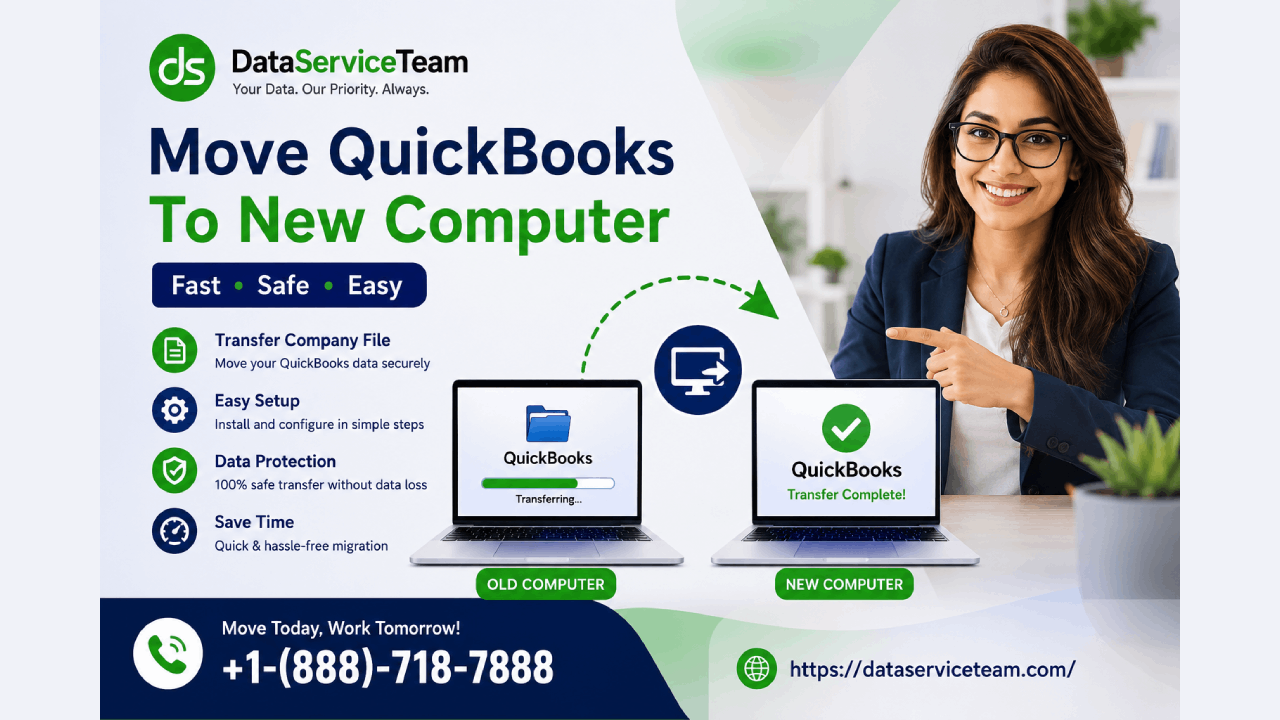
This comprehensive guide covers everything you need to know—from using the official QuickBooks Migrator Tool to manual methods, ensuring your financial data transfers safely and completely .
What Does "Move QuickBooks to New Computer" Mean?
Moving QuickBooks to a new computer involves transferring both the QuickBooks Desktop software installation and your critical company data files from your old system to a new one.
This is not just about copying files—you must ensure the software is properly installed, activated, and that all your financial history, payroll records, and customized templates are intact and accessible on the new hardware .
Two Methods to Move QuickBooks to New Computer
There are two primary approaches for transferring QuickBooks to a new computer: using the official QuickBooks Migrator Tool (recommended for single users) or performing a manual transfer.
Method Best For Key Features Migrator Tool Single users with QuickBooks 2018 or newer Transfers up to 3 company files, copies software settings, automates the entire process Manual Transfer Users with older versions or complex setups Complete control, works with any version, requires more manual steps
What You'll Need Before You Start
Before beginning any migration, gather these essential items :
QuickBooks License and Product Numbers: Find these in your Intuit Account or original purchase confirmation email
Company Admin Access: You must be logged in as the company administrator
Internet Connection: Your new computer must be connected to the internet
QuickBooks 2018 or Newer: The Migrator Tool requires this version
Windows 10 or 11 (64-bit): Ensure your new computer meets the system requirements
External Storage Device: A USB flash drive with sufficient space—typically between 150 and 250 MB
Pro Tip: If you are running 64-bit QuickBooks Desktop 2022 or 2023, you can only migrate to another 64-bit system. The migrator tool may stop unexpectedly on a 32-bit Windows system .
How to Move QuickBooks with the Migrator Tool (Recommended)
The Migrator Tool is the simplest method for single users. It moves up to three recently opened company files and many of your QuickBooks settings automatically.
Step 1: Prepare Your Old Computer
Open QuickBooks Desktop on your old computer
Go to File > Utilities > Move QuickBooks to another computer
Select I'm Ready and create a one-time password—write this down as you will need it on the new computer
Follow the on-screen instructions to select your USB flash drive
Wait for the files to be copied to the drive
Step 2: Transfer to the New Computer
Due to Windows security restrictions, the Migrator Tool won't open automatically
Open the flash drive to view its files
Double-click the Move_QuickBooks.bat file to start the migrator
Enter the one-time password you created earlier
Note: The time taken depends on your computer speed, internet connection, and company file size . If the migrator doesn't open, you may need to update your version of Windows 10 .
Read about:- Use QuickBooks Tool Hub to diagnose and resolve common errors, improve software performance, and simplify troubleshooting tasks efficiently.
What Gets Copied (and What Doesn't)
The Migrator Tool copies important data but has some limitations :
Data That Gets Copied:
Custom templates and forms
Memorized and scheduled reports
Local attachments
Spell checker (spell.ini and UserDictionary.tlx)
Advanced reports (for QuickBooks Enterprise)
Cash Flow Projector (.cfp) and Loan Manager (.lmr) files
Data That Doesn't Get Copied:
Company files you haven't recently opened (you can move these manually)
Payroll and payment service setups—you'll need to sign in again on the new computer
Intuit Data Protect—must be uninstalled from old PC and set up manually on new PC
How to Manually Move QuickBooks Without the Migrator Tool
If you are using an older version or prefer more control, follow these steps :
Step 1: Backup Your Company File on the Old Computer
Open QuickBooks and go to File > Back Up Company > Create Local Backup
Switch to single-user mode first: File > Switch to Single-user Mode
Select Local Backup and choose where to save the backup
Save the backup file to an external drive or USB flash drive
Step 2: Deactivate QuickBooks on the Old Computer
Step 3: Install QuickBooks on the New Computer
Download the latest QuickBooks Desktop installer from the official Intuit website
Run the installation wizard and enter your license and product numbers
Choose the installation type (Typical or Custom & Network Options)
Step 4: Restore Your Company File
Copy the backup file from your external drive to the new computer
Select Restore a backup copy and click Next
Browse to locate your backup file (it will look like [Your Company Name].qbb)
Choose the folder where the restored file will be saved and click Save
What to Do After Moving QuickBooks
Once the transfer is complete, complete these essential post-migration steps :
Verify Your Data: Open QuickBooks and review your accounts, transactions, and balances to ensure everything is correct
Sign In to Services: Log in to payroll, banking, and payment services on the new computer
Download the Latest Tax Table: If you use payroll, go to Employees > Get Payroll Updates > Download Entire Update
Back Up Your Data: Create a fresh backup of your company file on the new computer
Rename Files on the Old Computer: Change the file names on your old computer to avoid accidentally using the wrong file later
Uninstall from Old Computer: Once everything is verified, you can uninstall QuickBooks from the old computer
Frequently Asked Questions (FAQs)
Q: Do I need to have QuickBooks installed on the new computer before using the Migrator Tool?
- A: No. The Migrator Tool downloads the correct version of QuickBooks to your new computer and sets it up with your files automatically .
Q: Do I need to deactivate QuickBooks on the old computer before moving?
- A: Yes, deactivating the old installation ensures you can activate QuickBooks on the new computer without licensing issues .
Q: How many company files can I transfer with the Migrator Tool?
- A: The Migrator Tool transfers up to three company files—the last three that you opened on your old computer .
Q: How long does the migration process take?
- A: Most of the process takes approximately 12 minutes, but the entire transfer can take up to 72 hours depending on your company file size, system speed, and internet connection.
Q: Can I move QuickBooks if I have an older version?
Q: Will my payroll data transfer automatically?
- A: The Migrator Tool copies company files including payroll history, but you will need to sign in to your payroll service again on the new computer .
Q: What if the migrator tool doesn't open on my new computer?
- A: If the migrator doesn't open after selecting and running the file, you may need to update your version of Windows 10 .
Note:- Fix Windows Firewall blocking QuickBooks to restore secure network communication, improve connectivity, and prevent interruptions while accessing company files.
Conclusion
Moving QuickBooks to a new computer doesn't have to be a headache. As a ProAdvisor, I recommend using the QuickBooks Migrator Tool for most single users—it automates the heavy lifting and ensures your settings transfer correctly. For those with older versions or complex setups, the manual method gives you full control over the process.
Your action plan:
Gather your license and product numbers
Create a backup of your company file
Deactivate QuickBooks on your old computer
Install QuickBooks on your new computer
Restore your company file and verify your data
Complete post-migration setup (sign in to services, update tax tables)
If you encounter any issues during migration or want professional guidance, our Data Service Team is here to help. Contact us at +1-(888)-718-7888 for expert assistance with your QuickBooks migration. Don't risk your financial data—get professional help today.